
DetailOAR Field Manual · Reports and integrations
Read Reports, Connect Integrations, and Troubleshoot Common Problems
Run date filters, read business metrics without overclaiming causation, export rows, set up optional adapters, and chase down problems in a safe order.
Save or use this guide
 View full size
Contents
Start
Know the outcome.
Steps
Do the work in order.
-
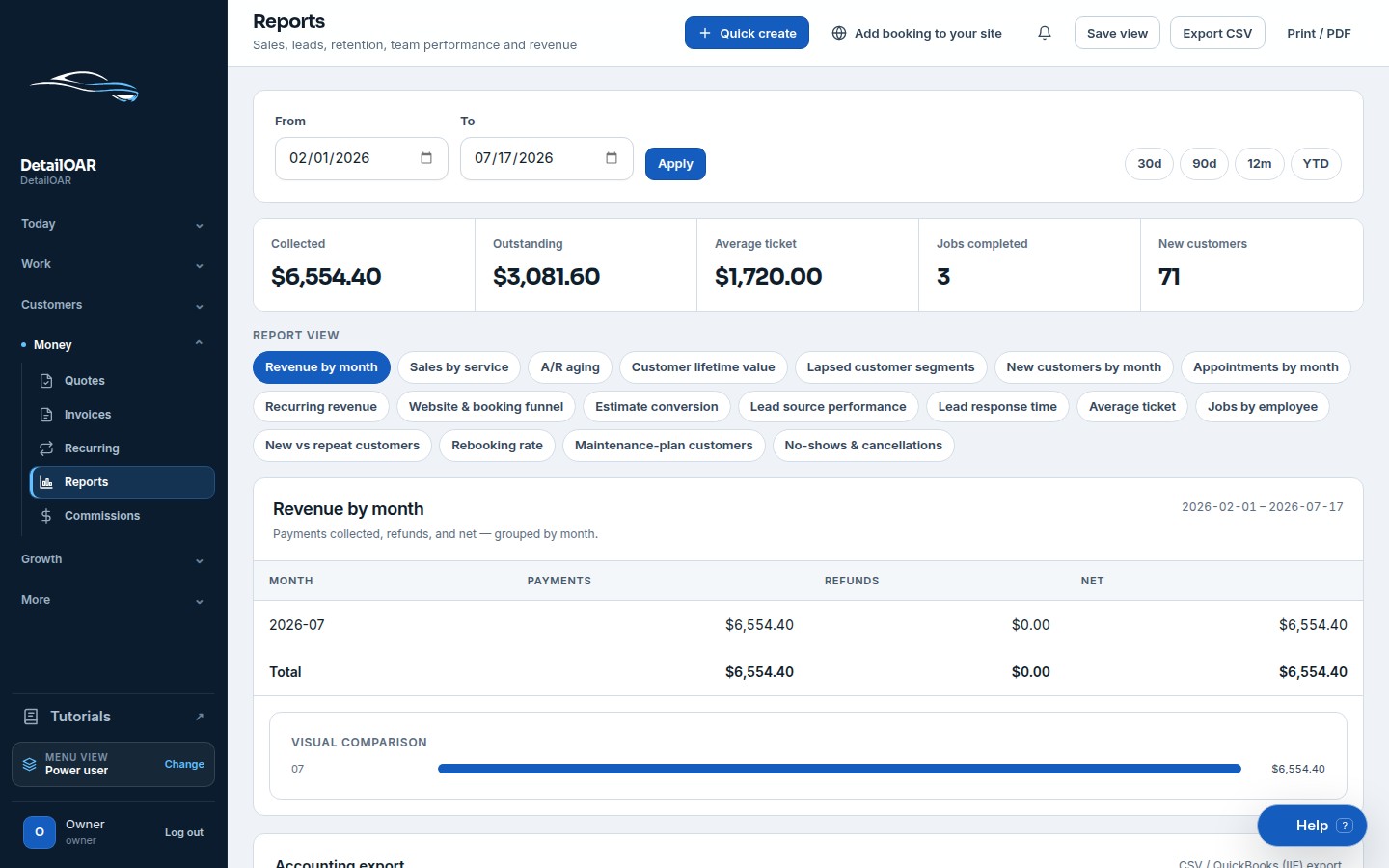
Step 1 Apply and read a report
Open Reports.
Pick a named report such as Revenue, Accounts receivable, Sales by service, or Recurring snapshot.
Set From and To dates, then choose Apply. Stick to one time zone and comparable periods.
Read the metric definition before you interpret anything. Collected cash, invoiced revenue, scheduled value, and outstanding balances answer different questions.
Look closely at empty and zero states. Zero can be a correct result; a loading or failed state is not zero.
Choose Export CSV and check the row totals reconcile to the on-screen result.
-
Step 2 Export for reconciliation
Choose Export CSV for the current report or accounting view.
Use Export for QuickBooks (.iif) only when the accounting workflow supports that import and the accounts are mapped correctly.
Reconcile totals against payment-provider deposits, cash/check records, refunds, tips, tax liabilities, and outstanding balances.
Keep the source export and the adjustment explanation. Don’t edit a report just to force a match with an unrelated bank period.
-
Step 3 Connect optional integrations
Open Settings, Integrations.
 View full size
Take one provider at a time: Payments, Email, SMS, Google Calendar, Storage, Maps/VIN, Accounting, Monitoring, or Webhooks as available.
Read the Unconfigured status and the required environment/settings fields. Secrets go only in protected fields or deployment secret storage.
Save, refresh the status, and run the smallest provider test.
Write down the account owner, renewal/billing responsibility, webhook URL, permissions/scopes, and disconnect procedure.
Keep the demo adapter active anywhere credentials are intentionally absent.
-
Step 4 Troubleshoot in a safe order
Start by confirming the workspace, signed-in user, role, record ID, and time range.
Read the exact UI error and browser/network response — without copying private data into a public ticket.
Check the integration status, message/payment/event log, and audit trail.
Use the Health endpoint and deployment logs to tell browser, app, database, and provider failures apart.
Reproduce with seeded demo data when possible.
Retry only after confirming the original action didn’t already succeed — payments, messages, bookings, and webhooks depend on idempotency.
Reference
Use the detail when you need it.
Interpret without inventing causation
- Estimate conversion: accepted or converted estimates divided by eligible sent estimates, per the report definition.
- Average ticket: eligible sales divided by eligible jobs/invoices — deposits and refunds shift the definitions.
- New versus repeat: comes from customer history, not whether staff remembers the person.
- Lead source performance: only useful when source capture is consistent.
- Employee/service results: weigh assignment, job duration, mix, cancellations, and data quality before comparing people.
Common problems
- Numbers differ: line up status, date basis, time zone, currency, refunds, tax, and cash-versus-accrual interpretation.
- Calendar item missing: check connection status, the selected calendar, scopes, the event sync log, and whether the appointment was confirmed.
- Provider shows configured but the action fails: refresh status, look for revoked credentials/scopes, and read the provider logs.
- CSV looks wrong in spreadsheet software: import as UTF-8 and keep phone, plate, VIN, and source IDs as text.
- Dashboard empty for staff: check permissions — hiding financials may be intentional.
Finish
Check the result and close the loop.
Final checklist
- Report definition and date basis understood.
- CSV reconciled.
- No private data sent to analytics/support unnecessarily.
- Integration owner and disconnect path recorded.
- Provider test passed or status remains visibly unconfigured.
- Idempotency checked before retry.
More
Continue only where it helps.
Prerequisites
Connect Payments and Send Your First Invoice12 min readConfigure the Lead Pipeline and Lead Sources12 min readLearning paths with this guide
Set Up DetailOAR8 guidesFrequently asked questions
Why does collected differ from revenue?
Collected counts payments actually received; other revenue views may run on invoice or job timing and include outstanding amounts.
Should I connect every integration immediately?
No. Only connect providers with a clear workflow, owner, credentials, cost, and tested disconnect path.
What data should go to analytics?
Coarse product events only. Never include customer notes, vehicle identifiers, private media, payment details, or message bodies.
Sources and review
Reviewed by DetailOAR Product Team on July 15, 2026. Verify current labels, interfaces, prices, and local requirements before acting.
Related field guides
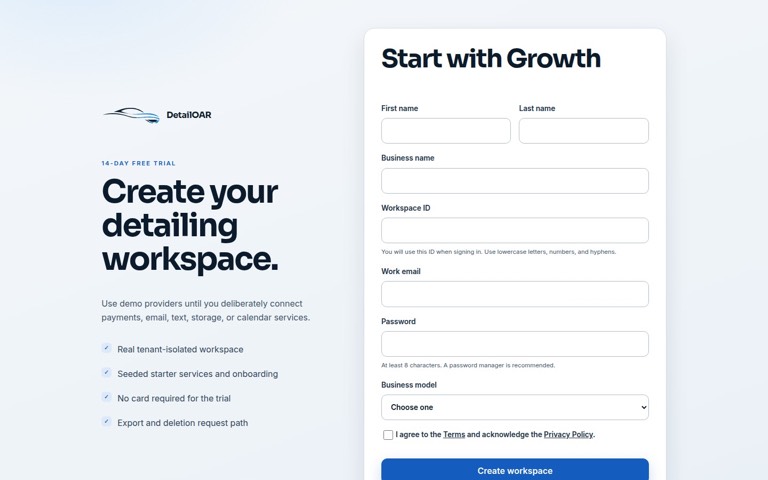 Software helpCreate Your Account and Business WorkspaceSpin up a tenant-isolated workspace, pick the right plan and business model, sign in, and confirm the owner session before any customer data goes in.
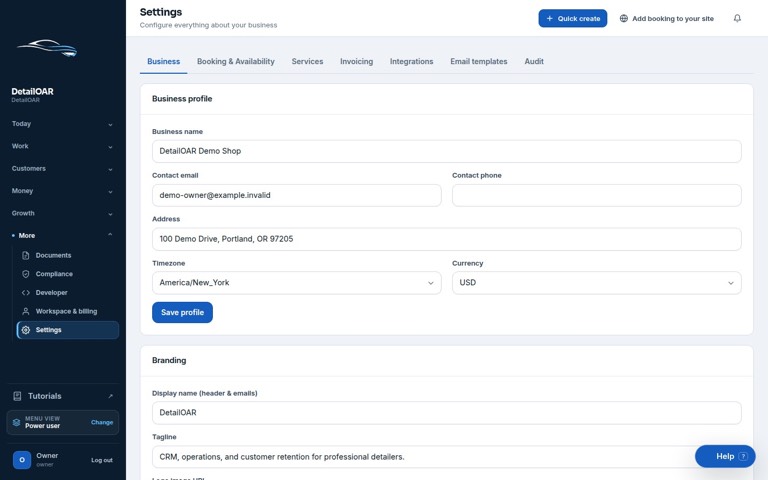 Software helpAdd Your Logo, Contact Details, Hours, and Service AreaFill in the public business profile and branding, then set weekly availability, exceptions, arrival rules, and your mobile service boundaries.
 Software helpImport Existing Customers and Vehicle RecordsPrep, preview, dedupe, import, verify, and export customer and vehicle data — without any of it landing in the wrong workspace.