
DetailOAR Field Manual · Business settings
Add Your Logo, Contact Details, Hours, and Service Area
Fill in the public business profile and branding, then set weekly availability, exceptions, arrival rules, and your mobile service boundaries.
Save or use this guide
 View full size
Contents
Start
Know the outcome.
What you will accomplish
You’ll give customer-facing pages, messages, estimates, invoices, and calendars one consistent business identity. You’ll also decide when work can land on the calendar and where mobile jobs are accepted.
Steps
Do the work in order.
-
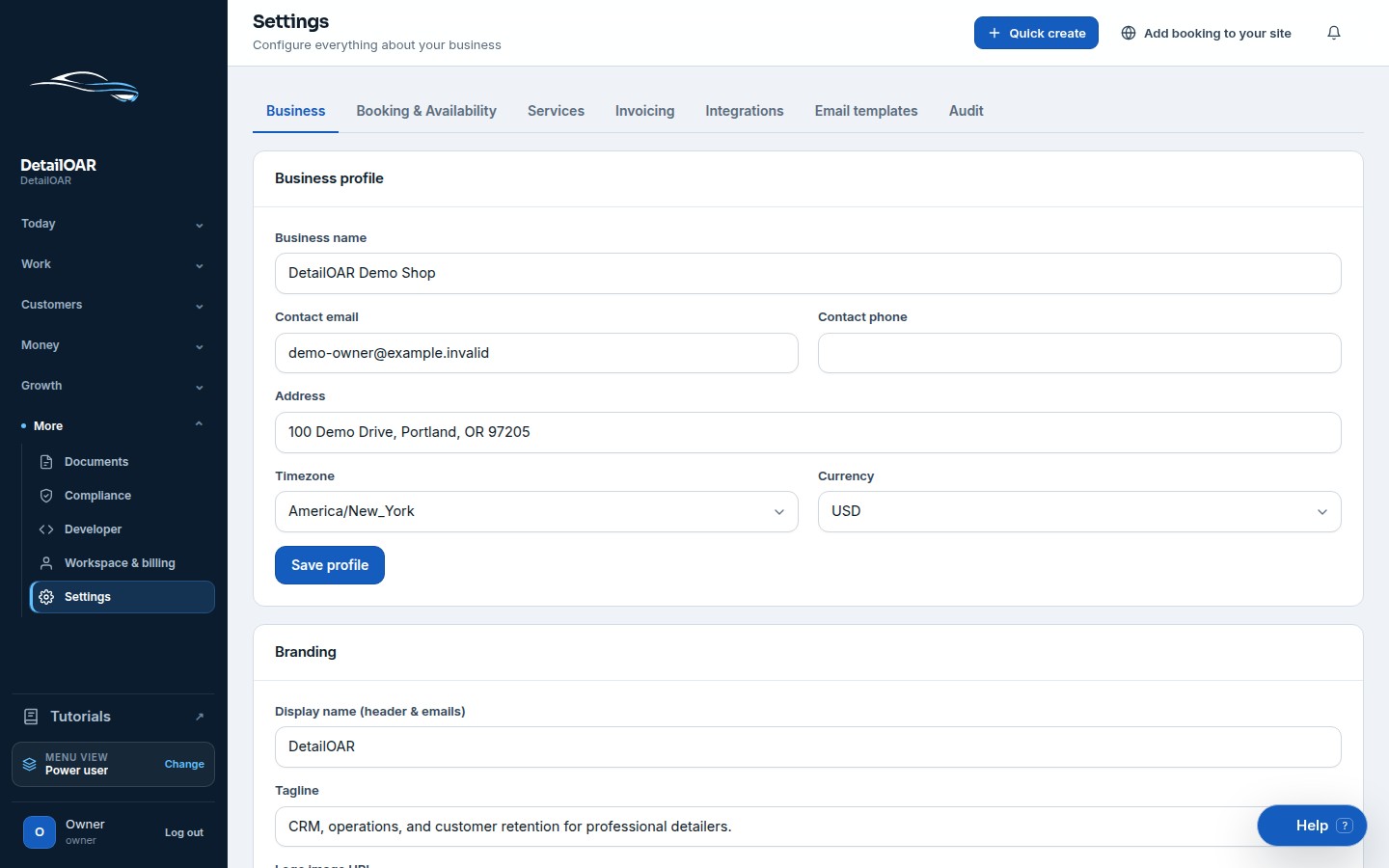
Step 1 Complete Business Profile
Open More in the top menu, then choose Settings.
Choose Business Profile. Enter the public business name, a monitored Contact email, the customer-facing Contact phone, time zone, currency, and a physical or mailing address.
Make sure the time zone matches the business location, not wherever the computer happens to be right now. Appointment times and reminders all hang off this setting.
Choose Save profile. Wait for the success message, then reload and check every value stuck.
-
Step 2 Add branding
Find the Branding card.
Enter the short Display name and Tagline you want showing on customer pages and email shells.
Enter the HTTPS Logo image URL for an approved PNG, WebP, or SVG you own. Add the optional reversed logo URL when the standard artwork is hard to read on dark backgrounds.
Pick a Brand color that keeps white text readable, then choose Save branding.
Open the public booking page in a private browser window and check the business name, logo, and color all belong to this workspace.
-
Step 3 Set weekly hours and capacity
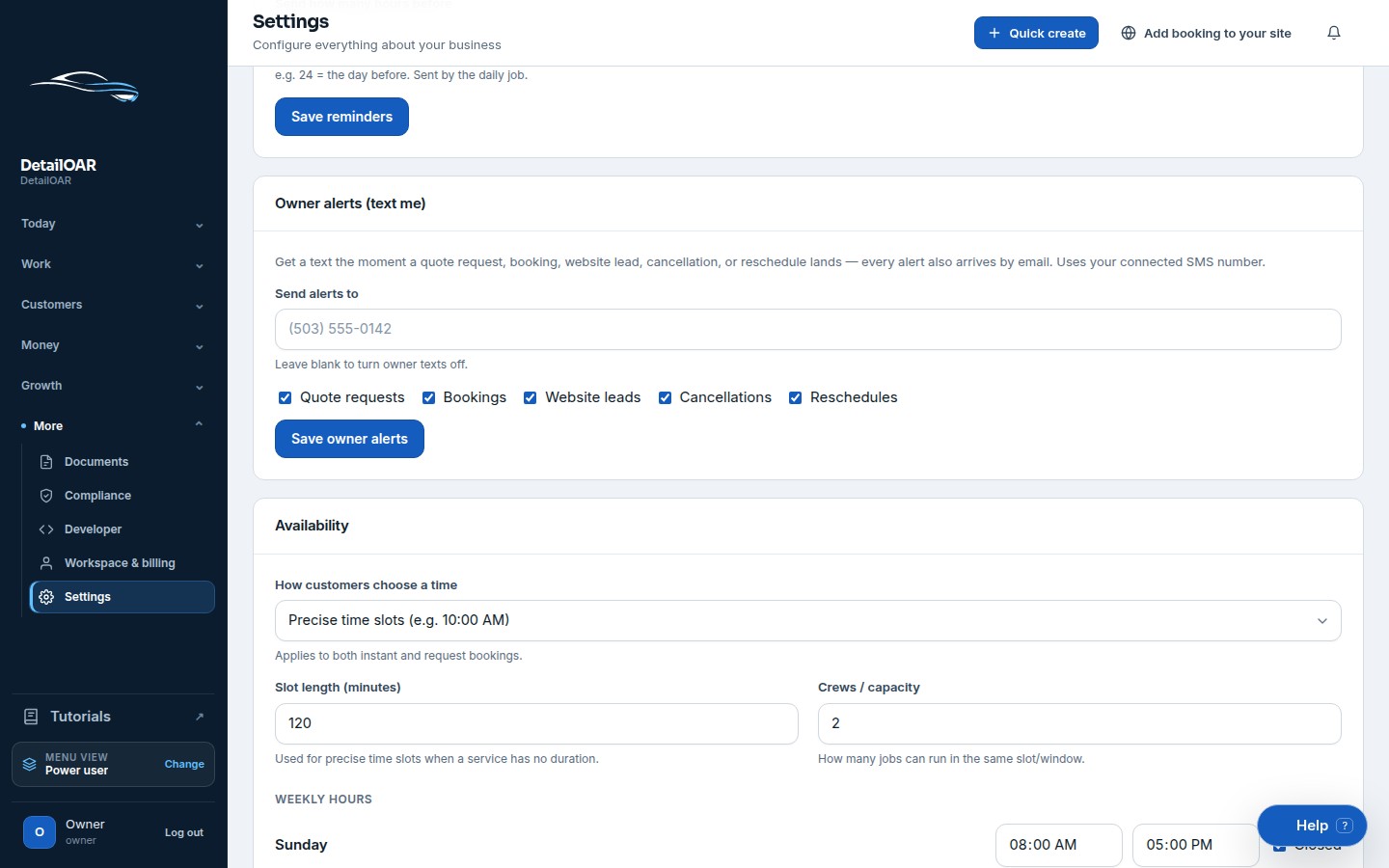
Choose Availability.
 View full size
For each working day, select Add window and enter an opening and closing time. Add separate windows when the business closes midday.
Set capacity to the number of jobs or crews that can genuinely start in the same slot. Don’t use employee headcount if bays, water access, or travel makes the real ceiling lower.
Choose Save availability, then open online booking and poke through several dates.
-
Step 4 Add closures and exceptions
In Availability exceptions, add Blackout dates for holidays, training, maintenance, or any day that should never take work.
Use an Override when one specific date runs different hours or capacity but should stay bookable.
Only remove an exception after checking it’s no longer protecting a real schedule constraint.
-
Step 5 Define mobile service area
Open Booking settings.
Choose the fulfillment modes you actually offer: Mobile, Shop, or Customer drop-off.
Enter the service radius or approved postal areas the current interface supports. Add a travel buffer that covers packing, driving, parking, and setup — not just map travel time.
Write a clear out-of-area instruction so a customer can ask for a manual quote instead of hitting a dead end.
Choose Save booking settings, then run one in-area and one out-of-area test with demo contact details.
Reference
Use the detail when you need it.
What good looks like
- Every public page shows the same name, logo, phone, and reply-to address.
- Bookable times line up with real working capacity.
- Closed dates can’t be booked.
- Mobile appointments leave enough travel and setup time.
- Out-of-area customers get a clear next step.
Troubleshooting
- Wrong appointment time: check the workspace time zone first.
- No bookable dates: make sure at least one service is active, weekly windows exist, and lead-time/booking-window settings aren’t ruling the date out.
- Logo won’t load: check the URL starts with HTTPS, is publicly readable, and points straight at an image you control.
- Logo looks blurry: swap in a larger approved source — screenshots of the logo won’t cut it.
- Color fails contrast: go a shade darker on the primary and retest buttons, links, focus rings, and email previews.
Finish
Check the result and close the loop.
Final checklist
- Profile saved and reloaded.
- Customer-facing branding checked privately.
- Weekly windows and capacity tested.
- Blackouts and overrides added.
- Mobile service boundary and travel buffer tested.
More
Continue only where it helps.
Learning paths with this guide
Set Up DetailOAR8 guidesFrequently asked questions
Should capacity equal the number of employees?
Only if employees are truly the limiting resource. Use the tightest real constraint across staff, bays, equipment, and travel.
Can I have two windows on one day?
Yes. Use Add window for split shifts or a midday closure.
Does changing the time zone move old appointments?
It changes how timestamps display. Look over existing schedules before changing the time zone on a live workspace.
Sources and review
Reviewed by DetailOAR Product Team on July 15, 2026. Verify current labels, interfaces, prices, and local requirements before acting.
Related field guides
 Software helpCreate Your Account and Business WorkspaceSpin up a tenant-isolated workspace, pick the right plan and business model, sign in, and confirm the owner session before any customer data goes in.
 Software helpImport Existing Customers and Vehicle RecordsPrep, preview, dedupe, import, verify, and export customer and vehicle data — without any of it landing in the wrong workspace.
 Software helpCreate Services, Packages, Add-Ons, and Vehicle-Size PricingBuild out sellable services with durations, booking behavior, deposits, size prices, invoice presets, and package/add-on conventions everyone can follow.