
DetailOAR Field Manual · Local visibility
How to Set Up and Improve a Google Business Profile
Set up an accurate, eligible Google Business Profile and keep categories, service areas, photos, services, reviews, and updates current without spammy tricks.
Save or use this guide
Contents
Start
Know the outcome.
Publish an eligible, accurate profile with locked-down ownership, the right visibility, complete services, and a weekly upkeep habit.
Audience, time, and cost
Shop, mobile, and hybrid detailers who serve customers face to face and meet Google’s current eligibility rules.
Time and costSetup costs nothing; verification timing varies. Upkeep should run about 20 minutes a week.
Before you start
Read the current guidelines first. Decide whether customers come to a staffed location, you go to them, or both, and pull together consistent business details.
Tools and materials
- Google account controlled by the business
- phone or computer
- legal and public business details
- hours
- service area
- real photos
Steps
Do the work in order.
-
Step 1 Confirm eligibility, then secure the owner
Open the current official eligibility rules and record whether the business qualifies. Then use a business-controlled account, add recovery and strong security, remove former staff, and add another trusted owner only when one exists.
-
Step 2 Use your real-world name and model
Enter the name customers see offline, set address visibility by where you actually serve people, and draw a service area you can really cover.
-
Step 3 Choose categories and services
Pick the closest primary category and only the secondary ones that truly apply. Add honest service names, descriptions, and prices where they hold steady.
-
Step 4 Complete contact and hours
List a local phone someone actually answers, your main website page, regular hours, and special hours for closures or seasonal shifts.
-
Step 5 Add real visual proof
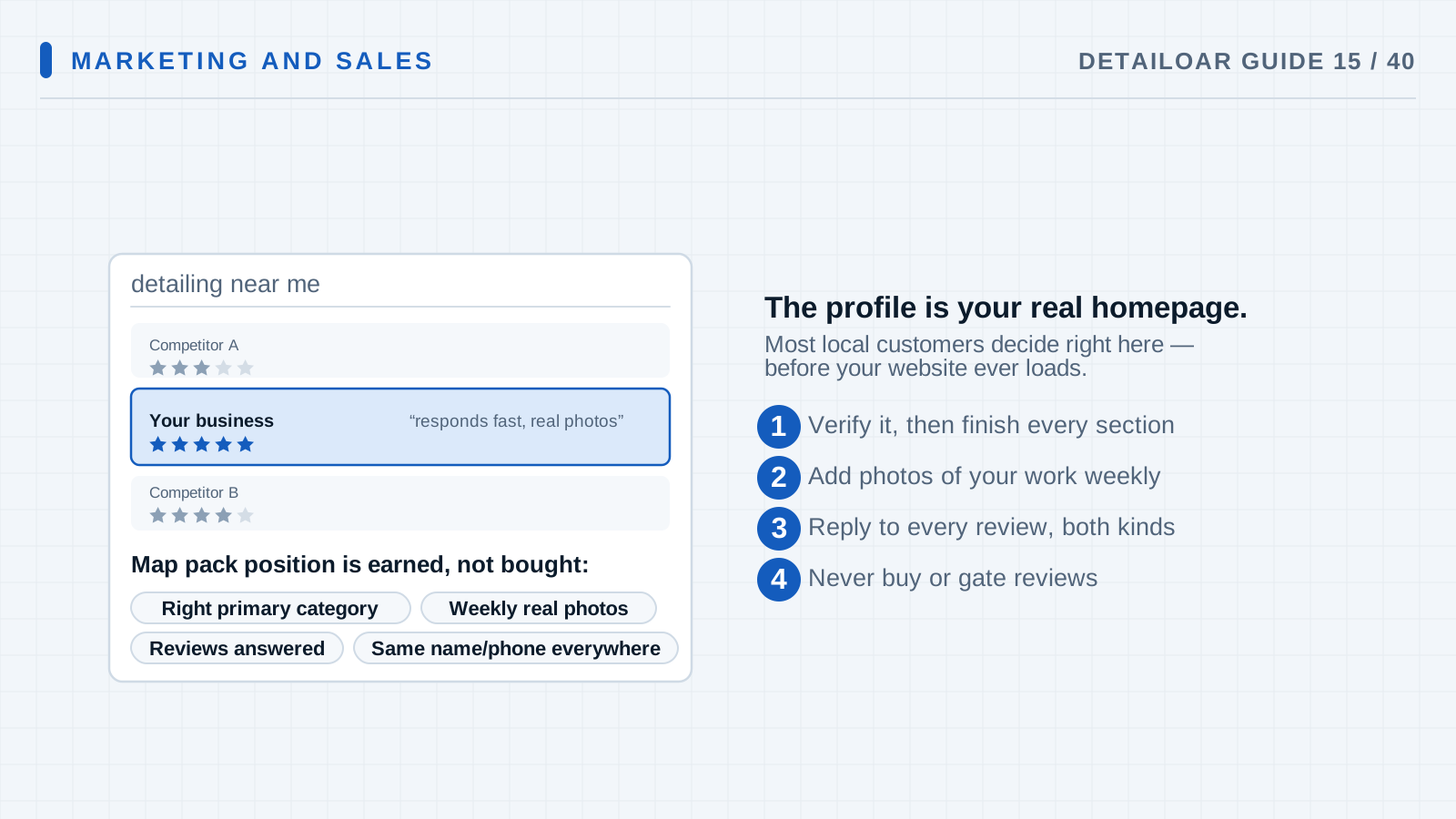
Upload your storefront or arrival setup, workspace, team, process, and finished work you have permission to share. Skip screenshots, watermarks, and misleading edits.
-
Step 6 Build the review workflow
Send the official review link after completed jobs, ask every eligible customer for honest feedback, and reply without spilling anyone’s private details.
-
Step 7 Maintain and measure
Once a week, check edits, messages, questions, photos, reviews, calls, website clicks, and any suspensions. Keep evidence in case you need a legitimate appeal.
Reference
Use the detail when you need it.
How it works
Your profile is a public source of truth. Accuracy, eligibility, secure ownership, real customer activity, and helpful evidence beat endless category and name fiddling aimed at gaming the ranking.
Terms used in this guide
- Primary categoryThe one category that best describes what the business really is.
- Service-area businessA business that goes to its customers and may hide its address under platform rules.
Common mistakes
- Stuffing city and service keywords into the business name.
- Listing an address where no customer is ever served.
- Opening duplicate profiles to cover service areas.
- Re-editing core fields over and over.
- Dangling rewards for positive reviews only.
Troubleshooting
- Verification stallsFollow the in-product method, get your real-world evidence together, stop making repeated edits, and go through official support instead of creating another profile.
- A stranger’s edit shows upFix it fast, review who has access, tighten account security, and keep a record if it keeps happening.
- The profile is suspendedStop poking at fields hoping something works. Compare every field against current guidelines, gather your evidence, and file the official appeal.
Finish
Check the result and close the loop.
What good looks like
- Name and address setup follow the current rules.
- Hours and contact info match the website.
- Services describe work you actually do.
- Photos show the real operation.
- Every customer gets the same honest shot at leaving a review.
- Access can be recovered and is audited.
Final checklist
- Eligibility confirmed
- Owners set on business accounts
- Name, category, and address model accurate
- Hours and services filled in
- Real photos uploaded
- Review link saved
- Weekly check assigned
What to do next
- Sharpen the landing pages the profile points to.
- Add consistent local citations, and be picky about where.
- Track calls and leads by source.
More
Continue only where it helps.
Learning paths with this guide
Get Your First 20 Customers9 guidesFrequently asked questions
Can a mobile detailer have a profile?
Possibly, if the business meets current eligibility rules and represents the service-area operation honestly. Follow the current official guidance.
Should I add every service as a category?
No. Pick the closest core category plus the relevant secondary ones, and let the services section carry the individual offers.
Can customers be rewarded for reviews?
Steer clear of incentives tied to reviews or sentiment. Follow platform rules and applicable endorsement and review laws, and ask everyone for honest feedback the same way.
Sources and review
Reviewed by DetailOAR Editorial Review on July 15, 2026. Verify current labels, interfaces, prices, and local requirements before acting.
Related field guides
 Marketing and SalesLocal SEO for Detailers: A Beginner’s Step-by-Step GuideGet found locally with a technically sound site, genuinely useful service and area pages, consistent business data, honest reviews, and smart internal links.
 Marketing and SalesHow to Build an Automatic Review-Request SystemAsk every eligible customer for an honest review at the right moment, automate follow-up with care, honor opt-outs, and route complaints to a private fix.
 Marketing and SalesHow to Take Before-and-After Photos That Sell the WorkShoot consistent, honest before-and-after photos that document condition, show off real workmanship, and keep your customers’ privacy protected.