
DetailOAR Field Manual · Reviews and retention
Configure Review Requests and Customer Reactivation
Set an honest review destination and timing, test delivery with no rating gates, decide which lapsed customers qualify, and run consent-aware reactivation.
Save or use this guide
 View full size
Contents
Start
Know the outcome.
Steps
Do the work in order.
-
Step 1 Configure the review destination
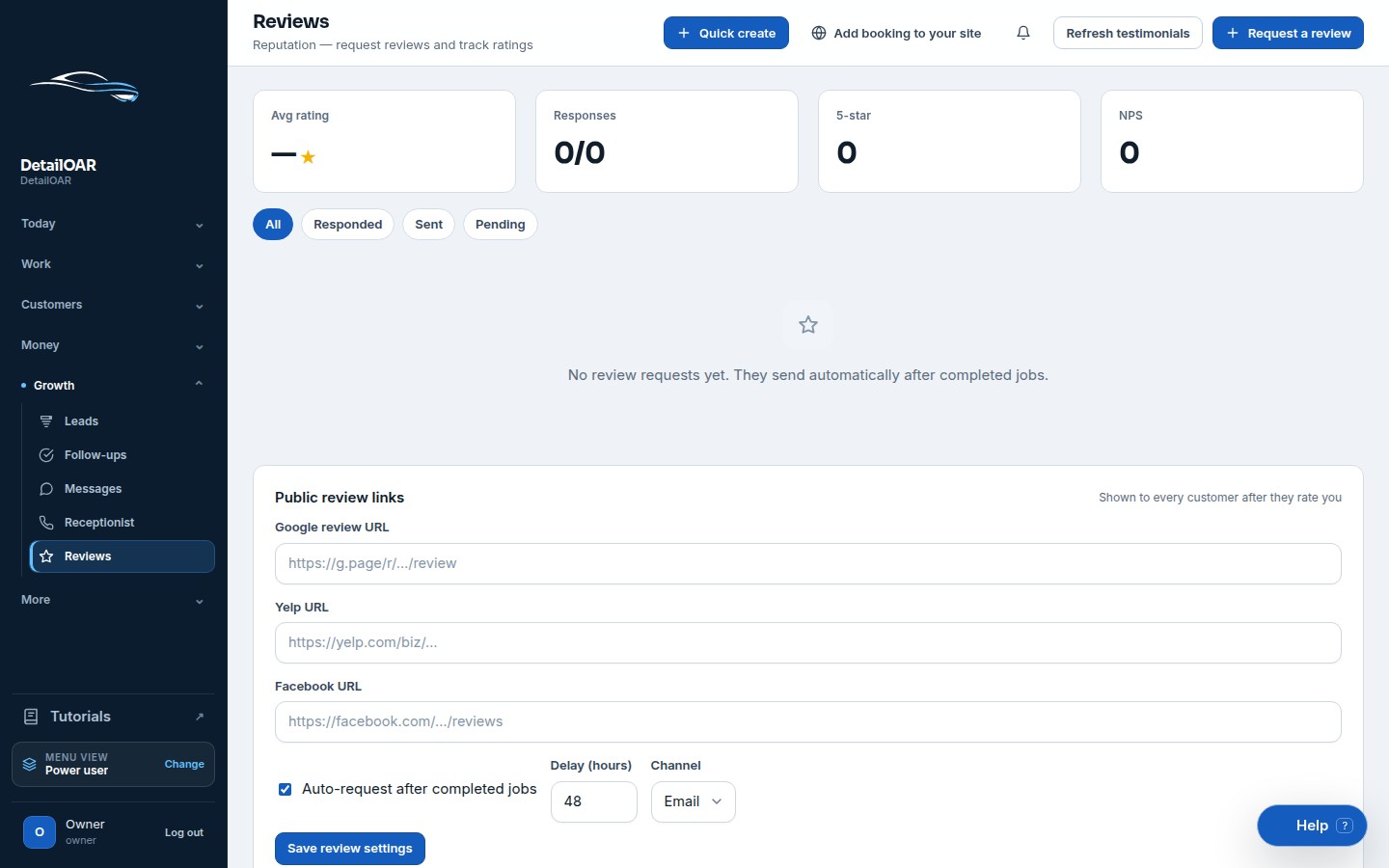
Open Reviews.
Enter the exact public review platform URL and choose Save review settings.
Open the URL in a private browser. Make sure it reaches the correct business and doesn’t demand an admin login.
Stick with one primary destination unless the business offers a clear customer choice — don’t rotate links just to steer the results.
-
Step 2 Set review timing and template
Open Settings, Reminders or follow-up rules, and find the review request timing.
 View full size
Pick a delay that gives the customer time to look the work over while the experience is still fresh.
Edit the Review request template. Include the business name, the completed service, an honest ask, the public link, and a contact path for questions.
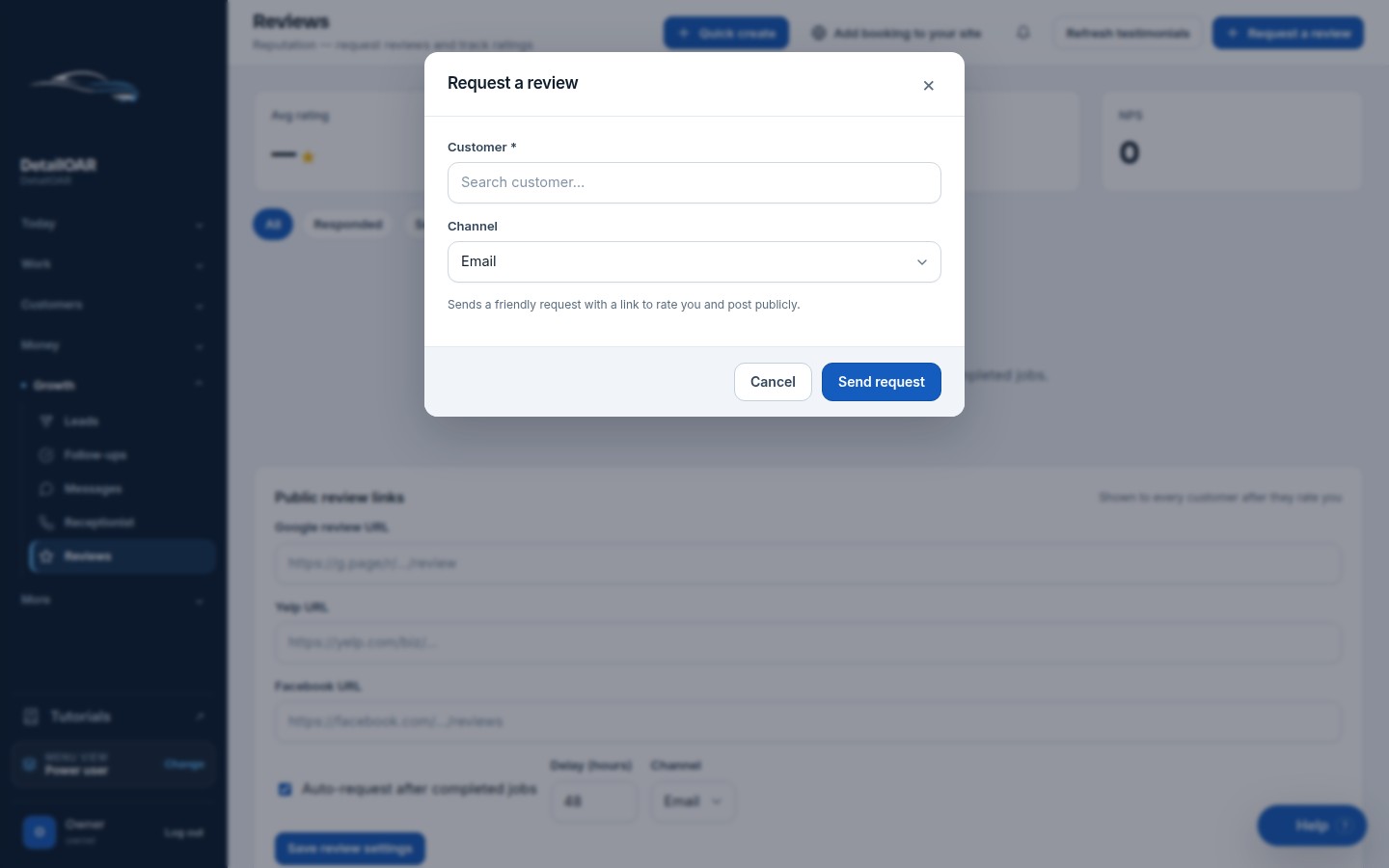
Test with a seeded completed job and a team-controlled address. Confirm one request and one review token get created.
-
Step 3 Handle responses and site use
Open Reviews to see response and send status.
Treat a low score as service-recovery information — never as a reason to hide the public platform link.
Use Approve/Reject only to decide whether customer-submitted text/media appears on your own site, under the documented moderation policy.
Use Feature only with permission and context, and never edit a customer quotation into a stronger claim.
Choose Refresh testimonials or Publish selected only after checking consent and private details.
-
Step 4 Create a reactivation segment
Define lapsed around the service cycle — say, customers whose eligible vehicle has no completed visit inside a reviewed time window.
Leave out opted-out, disputed, active follow-up, recently contacted, invalid-contact, and inappropriate service records.
Give people one real reason to return: seasonal condition, overdue maintenance, an expiring care window, or a relevant service update.
Preview the recipient count and a sample, and start with a small controlled batch when the campaign feature is enabled.
Watch replies, delivery, STOP events, bookings, and complaints, then end the campaign when the stated window closes.
Reference
Use the detail when you need it.
Request reviews fairly
Send the same legitimate public-review opportunity no matter what rating a customer might give. Don’t hide the public link after a low private score, don’t offer undisclosed incentives, and don’t write the customer’s review for them. Follow each platform’s current policies.
What good looks like
- Review link reaches the correct business.
- Every eligible customer sees the same public path.
- One job creates one request unless you resend on purpose.
- Reactivation eligibility is explainable.
- Consent/opt-out changes suppress future sends.
- Results get reported without made-up attribution.
Troubleshooting
- Review link wrong: fix it and retest before sending another request.
- Duplicate requests: check appointment idempotency and send status before resending.
- Customer photo shows something private: reject it from site publication and retain it only under the private-record policy.
- Reactivation audience too large: tighten service, recency, consent, and contact-history criteria instead of sending first and apologizing later.
Finish
Check the result and close the loop.
Final checklist
- Public destination verified.
- Timing and template tested.
- No rating gate exists.
- Moderation/permission process documented.
- Lapsed definition and exclusions reviewed.
- STOP and reply monitoring assigned.
More
Continue only where it helps.
Prerequisites
Create Automated Text and Email Messages12 min readCreate Recurring Maintenance Plans12 min readLearning paths with this guide
Set Up DetailOAR8 guidesFrequently asked questions
Should low ratings receive the public review link?
Yes. Never gate the public path on private sentiment.
Can customer photos appear on the website automatically?
No. Moderation, permission, and private-detail checks all come before publication.
Who should receive reactivation messages?
Only an explainable, relevant, consent-eligible segment with no conflicting recent activity or opt-out.
Sources and review
Reviewed by DetailOAR Product Team on July 15, 2026. Verify current labels, interfaces, prices, and local requirements before acting.
Related field guides
 Marketing and SalesHow to Build an Automatic Review-Request SystemAsk every eligible customer for an honest review at the right moment, automate follow-up with care, honor opt-outs, and route complaints to a private fix.
 Marketing and SalesHow to Create Repeat Customers, Maintenance Plans, and Reactivation CampaignsBuild follow-up, rebooking, recurring maintenance, and respectful win-back campaigns around what the vehicle needs and what the customer agreed to.
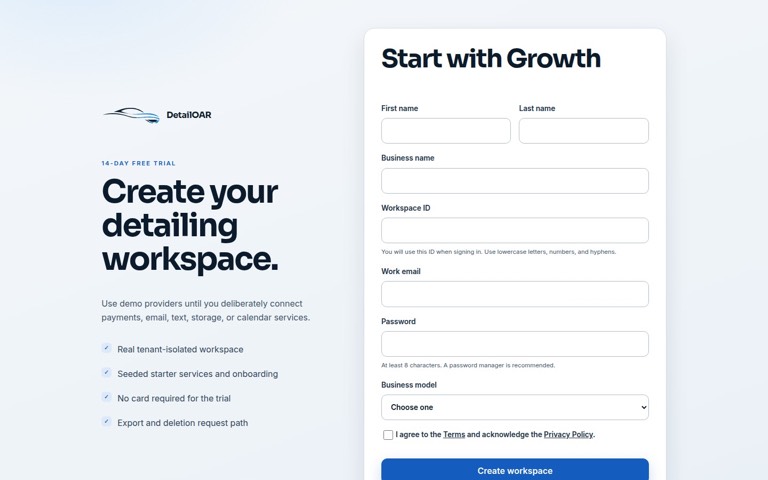 Software helpCreate Your Account and Business WorkspaceSpin up a tenant-isolated workspace, pick the right plan and business model, sign in, and confirm the owner session before any customer data goes in.